
How to submit E-OSAGO and KASKO insurance claims online through your GROSS personal account
17.11.2026
1. Log in to your GROSS personal account, select E-OSAGO or KASKO, and verify your identity through MyID.
2. Indicate your role in the accident by selecting the relevant option in the form.
3. For an E-OSAGO claim, enter the accident details and select the claim category: vehicle damage only, bodily injury only, or both. This category selection does not apply to KASKO claims.
4. Enter the relevant insurance policy details and, where applicable, bank details for receiving any approved claim payment.
5. Upload the required supporting documents and any additional evidence.
6. Check the information, submit your claim, and save the claim reference number.
After a road traffic accident, complete the necessary documentation and notify the relevant insurer promptly. The updated GROSS personal account allows you to submit an insurance claim and upload supporting documents online without visiting an office to submit them.
The online claim form is available for compulsory motor third-party liability insurance (E-OSAGO) and voluntary comprehensive motor insurance (KASKO). Select the relevant insurance type, verify your identity, enter the incident details, and upload the required supporting documents.
This guide explains the six steps for submitting a claim, the supporting documents requested, and the additional features available through your GROSS personal account.
Who can submit an insurance claim through GROSS
You can submit a claim online if it meets the policy conditions and the eligibility requirements of the GROSS online service. Entitlement to payment depends on the type of insurance and the circumstances of the incident.
For E-OSAGO, an affected third party can claim through GROSS if the at-fault driver’s liability is insured by GROSS. E-OSAGO covers liability for third-party property damage, bodily injury, or death, subject to the applicable terms and coverage limits. The at-fault driver must notify the insurer; this does not entitle that driver to compensation for their own vehicle damage under E-OSAGO.
For KASKO, you can claim for loss of or damage to the insured vehicle arising from an event covered by the policy. Eligibility for payment depends on the selected plan and the circumstances of the incident.
GROSS reviews the information and supporting documents before deciding whether the claim is covered and what amount, if any, is payable. Submitting a claim does not guarantee payment.
How to submit an E-OSAGO or KASKO insurance claim online
Complete the online form with details of the incident, the parties involved, and the relevant insurance policy. Where applicable, provide bank details for receiving any approved claim payment.
Before you start, prepare digital copies of the required supporting documents so that you can complete the form without interruption.
Open your GROSS personal account and log in using your phone number.
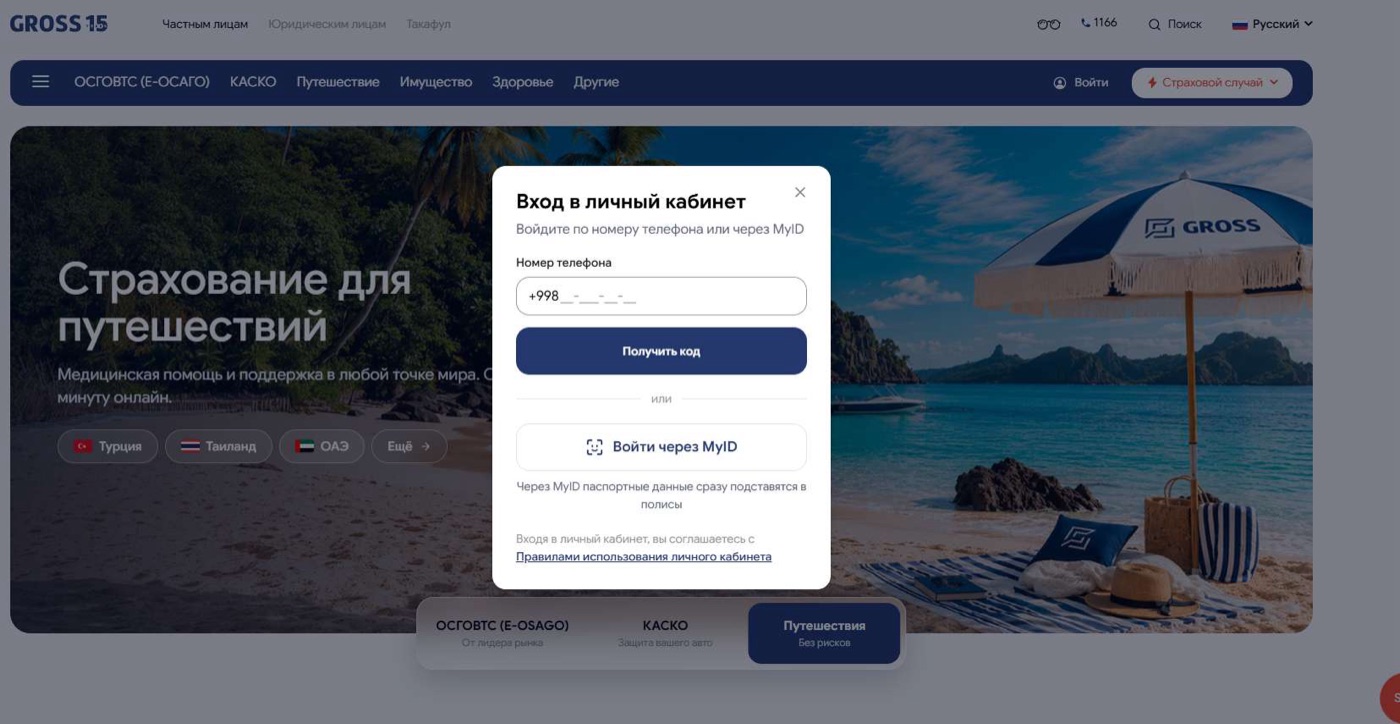
Go to the claim submission section and select E-OSAGO or KASKO, as appropriate.
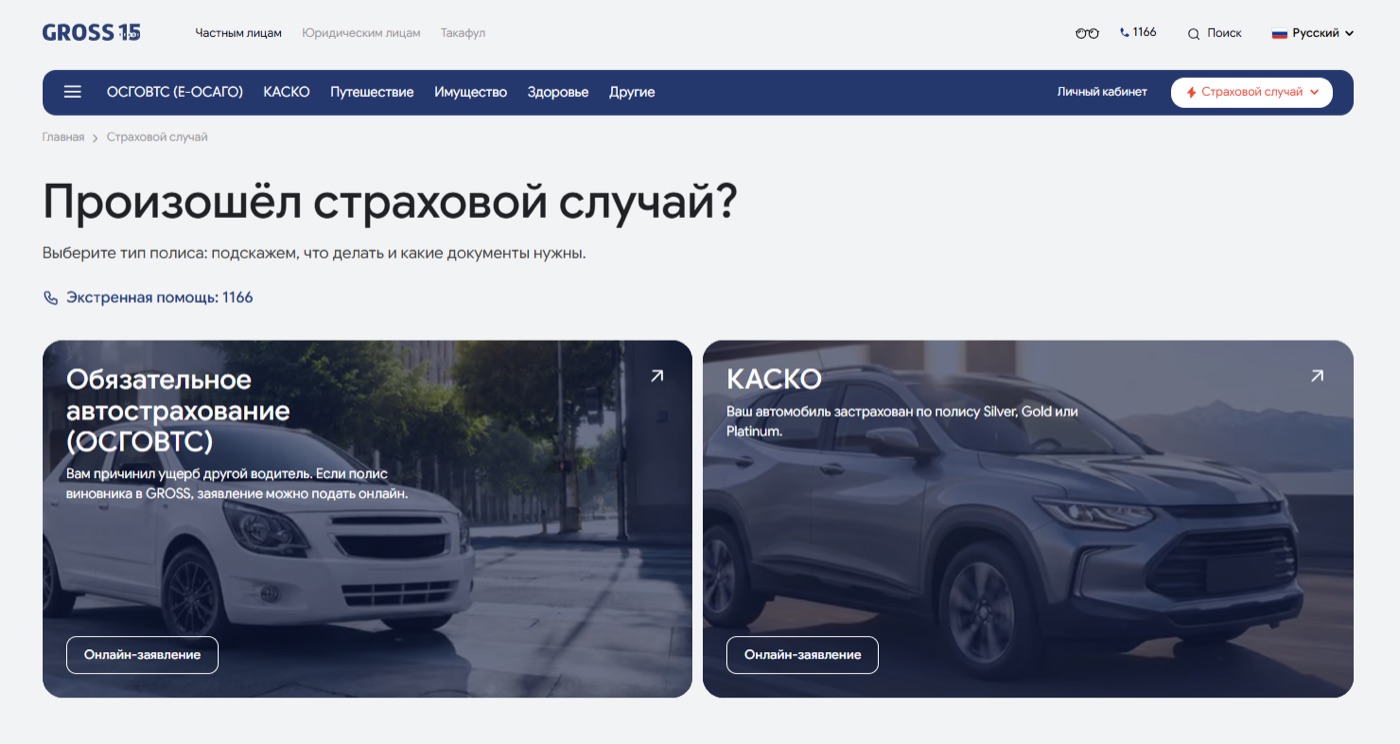
Step 1. Verify your identity
Verify your identity through MyID by following the on-screen instructions and confirming your personal details. Once verification is complete, continue to the next step.
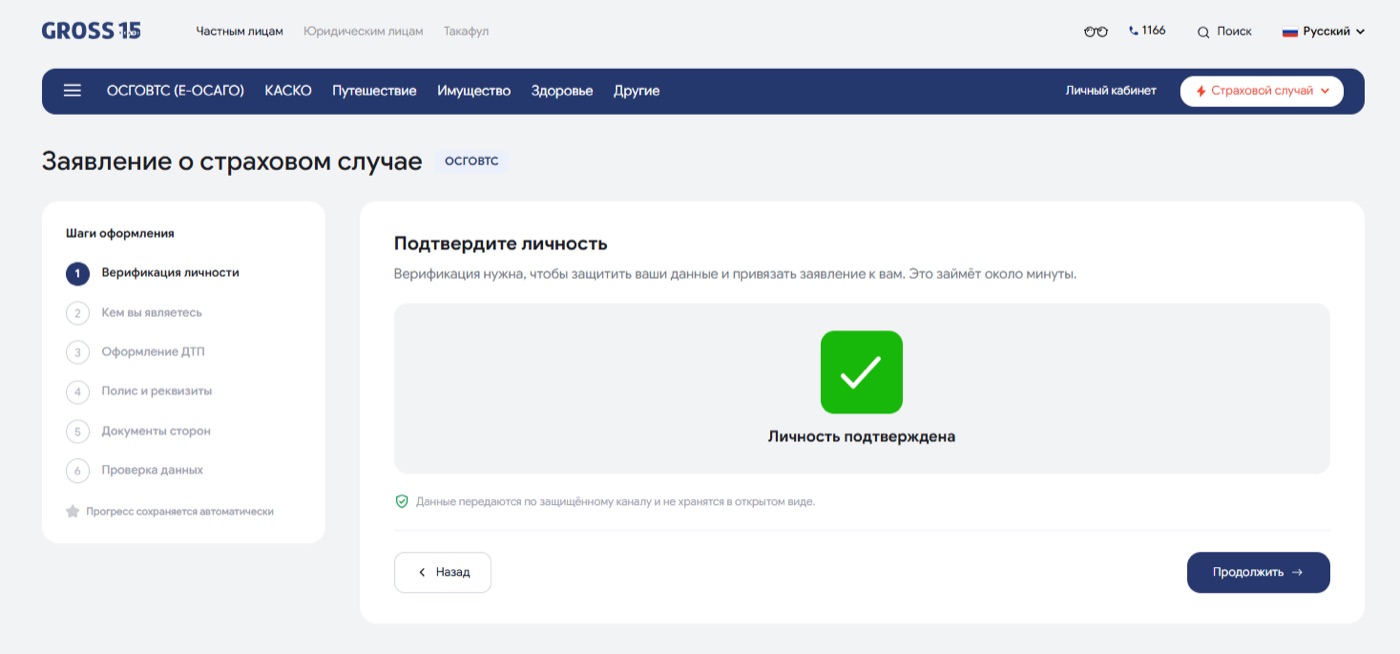
Step 2. Indicate your role in the accident
If the form asks for your role in a road traffic accident, select the relevant option:
• Affected party — a party that has suffered property damage or bodily injury as a result of the accident, or a person claiming in connection with a fatality.
• At-fault party — the driver identified as responsible for the accident in the relevant accident documentation.
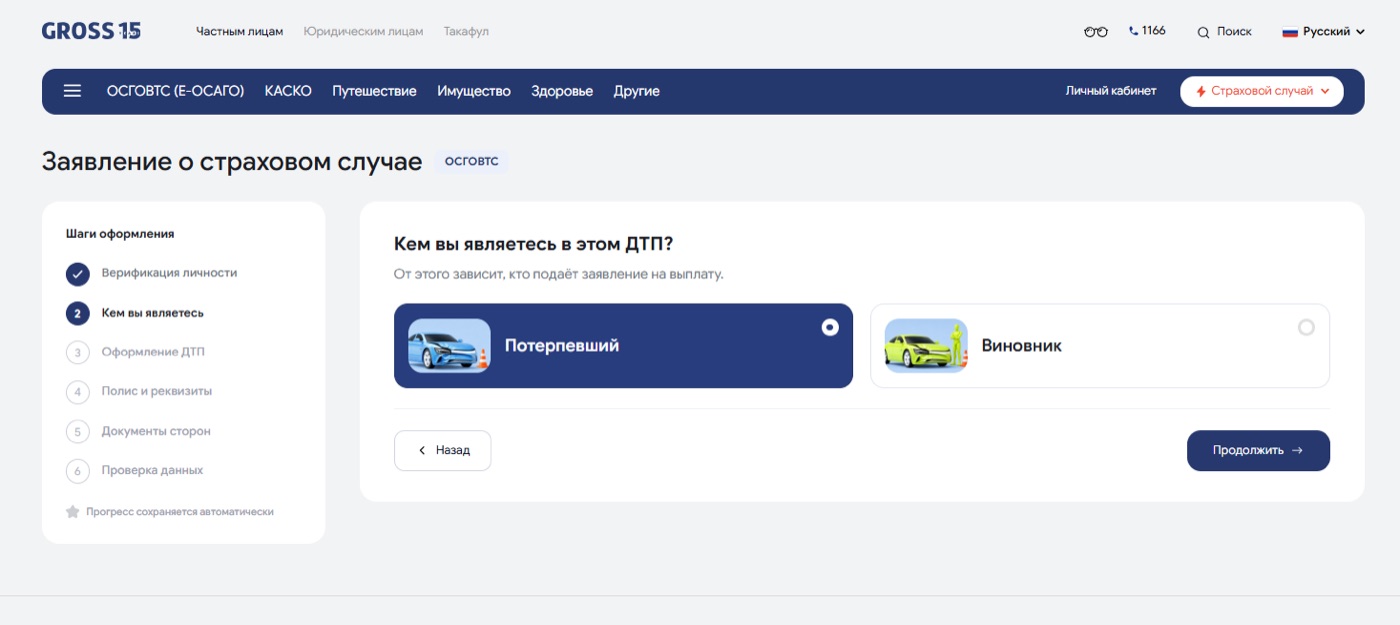
Choose the option that matches the circumstances and supporting documents, then enter the requested information. Selecting a role does not, by itself, establish entitlement to a claim payment.
Step 3. Enter the accident details and select the claim category
This step applies to the E-OSAGO form. For KASKO, continue to the policy details and provide the incident information requested by the form. For E-OSAGO, enter the accident details and select the option that matches how the accident was documented, such as “Documented by a traffic police officer”.
Select the applicable claim category:
• «Vehicle damage only» — the claim concerns vehicle damage and does not include bodily injury or death.
• «Bodily injury only» — the claim concerns injury or death and does not include vehicle damage.
• «Both vehicle damage and bodily injury» — the claim concerns vehicle damage as well as injury or death.
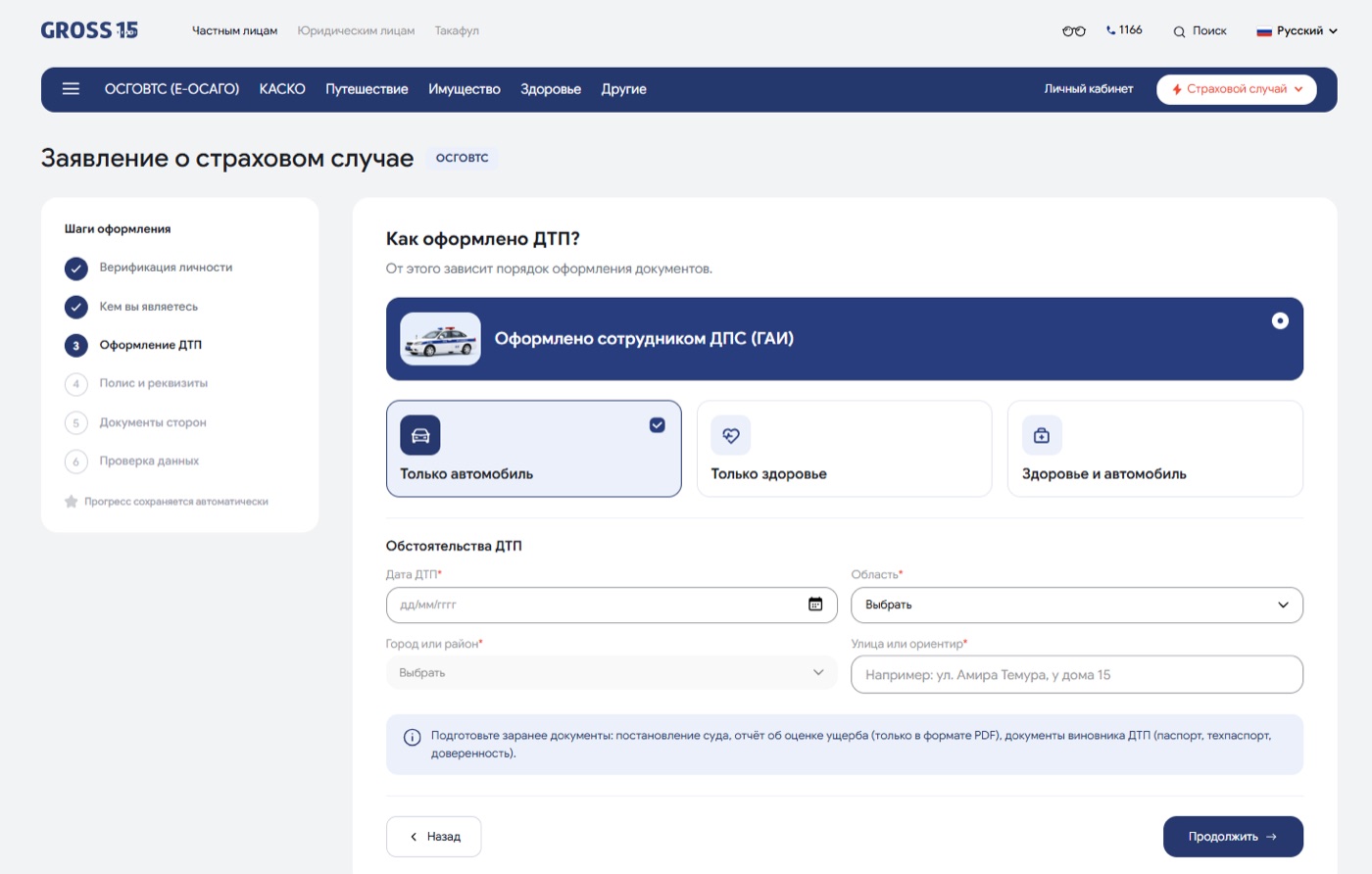
The supporting documents requested depend on the category selected. Enter the accident details as recorded in the official documents, then proceed to the next step.
Step 4. Enter the insurance policy and bank details
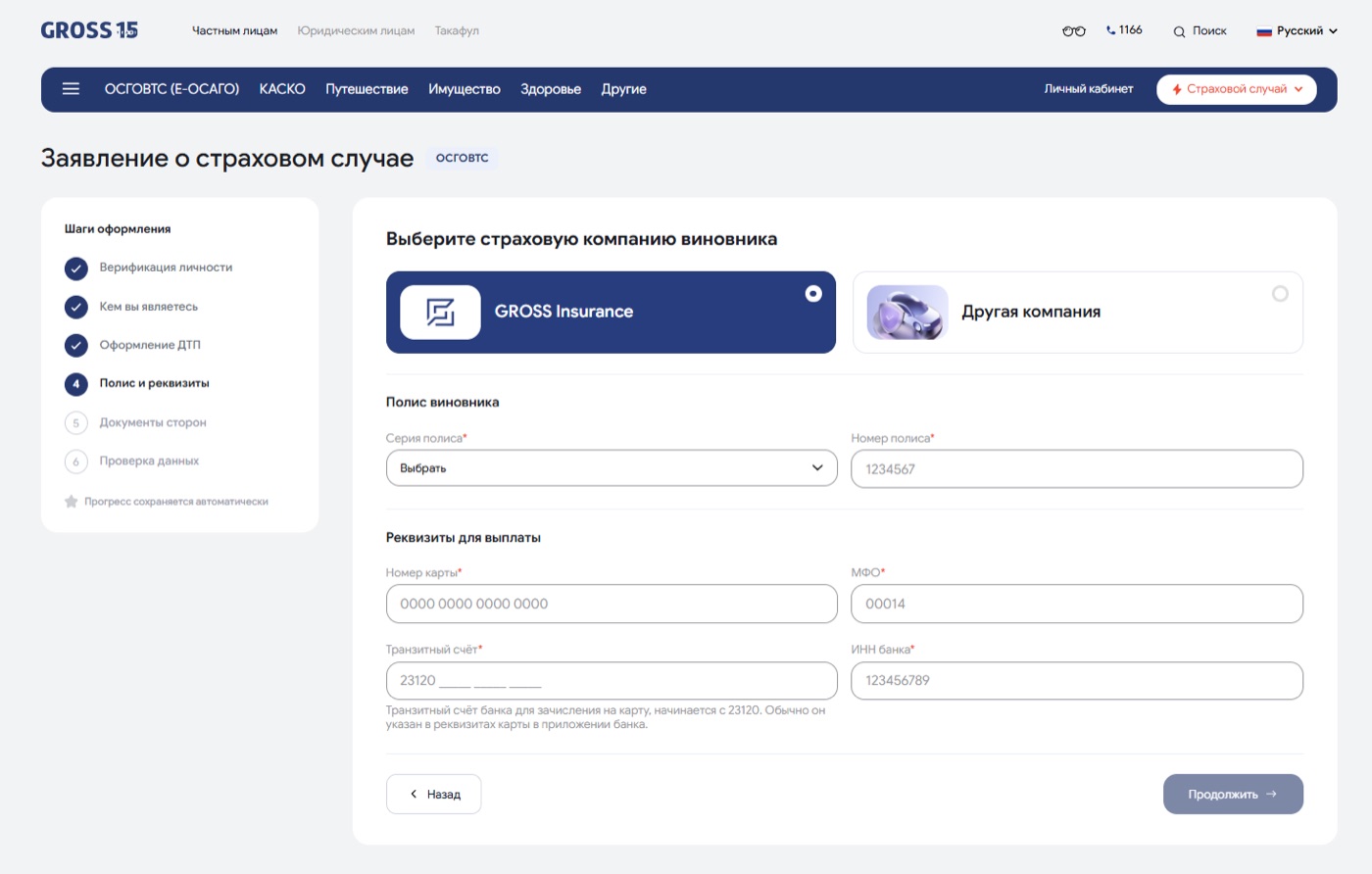
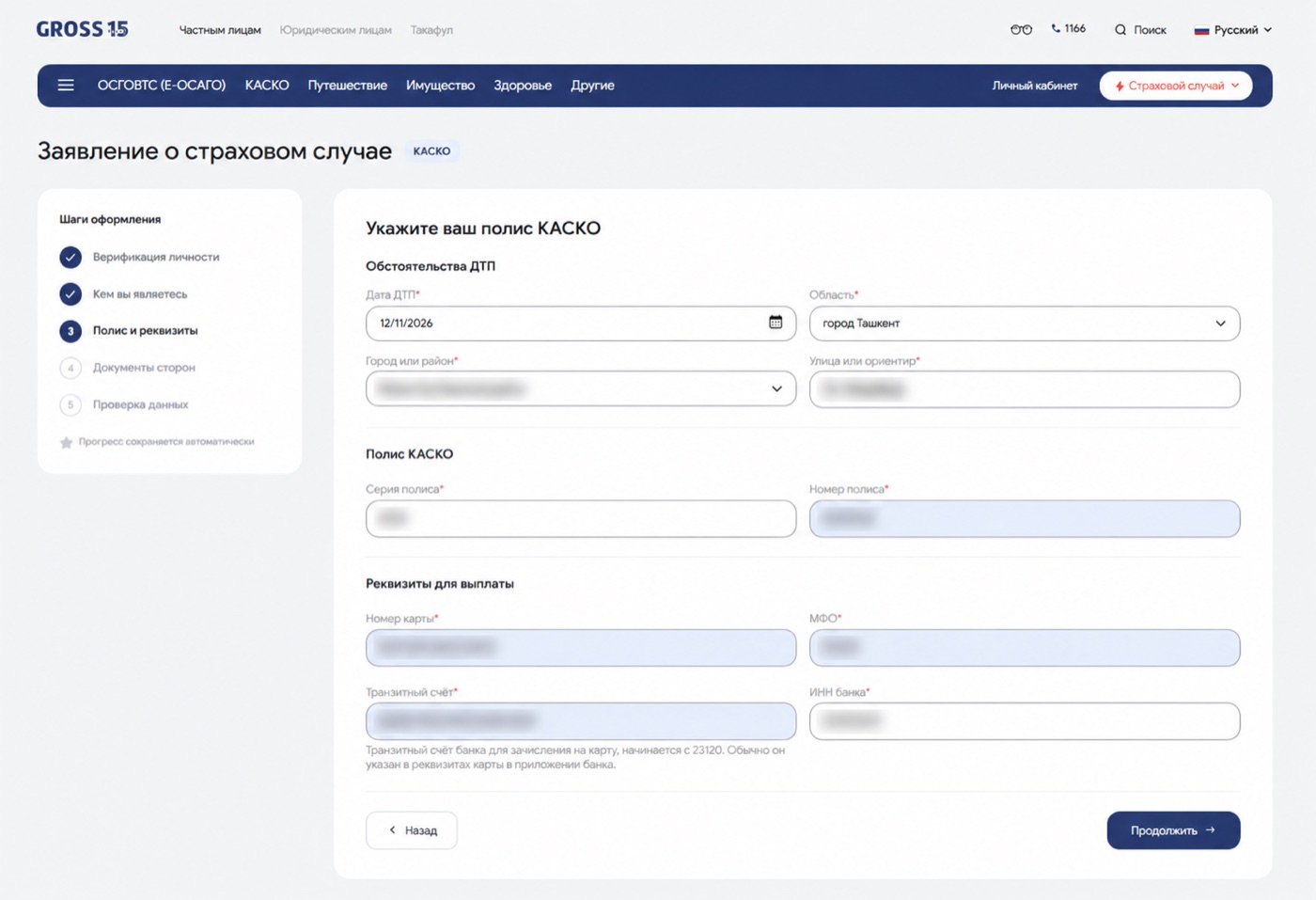
In the “Policy and Details” section, enter the relevant policy information. For an E-OSAGO claim, select the at-fault driver’s insurer: “GROSS Insurance” or “Other company”. If their E-OSAGO policy was issued by GROSS, enter its series and number. If another insurer issued the policy, the claim should be submitted to that insurer. For KASKO, enter the details of the policy covering your vehicle.
Provide the bank details requested by the form, where applicable, and check them carefully. Incorrect or incomplete details may delay payment. Complete all mandatory fields, then click “Continue”.
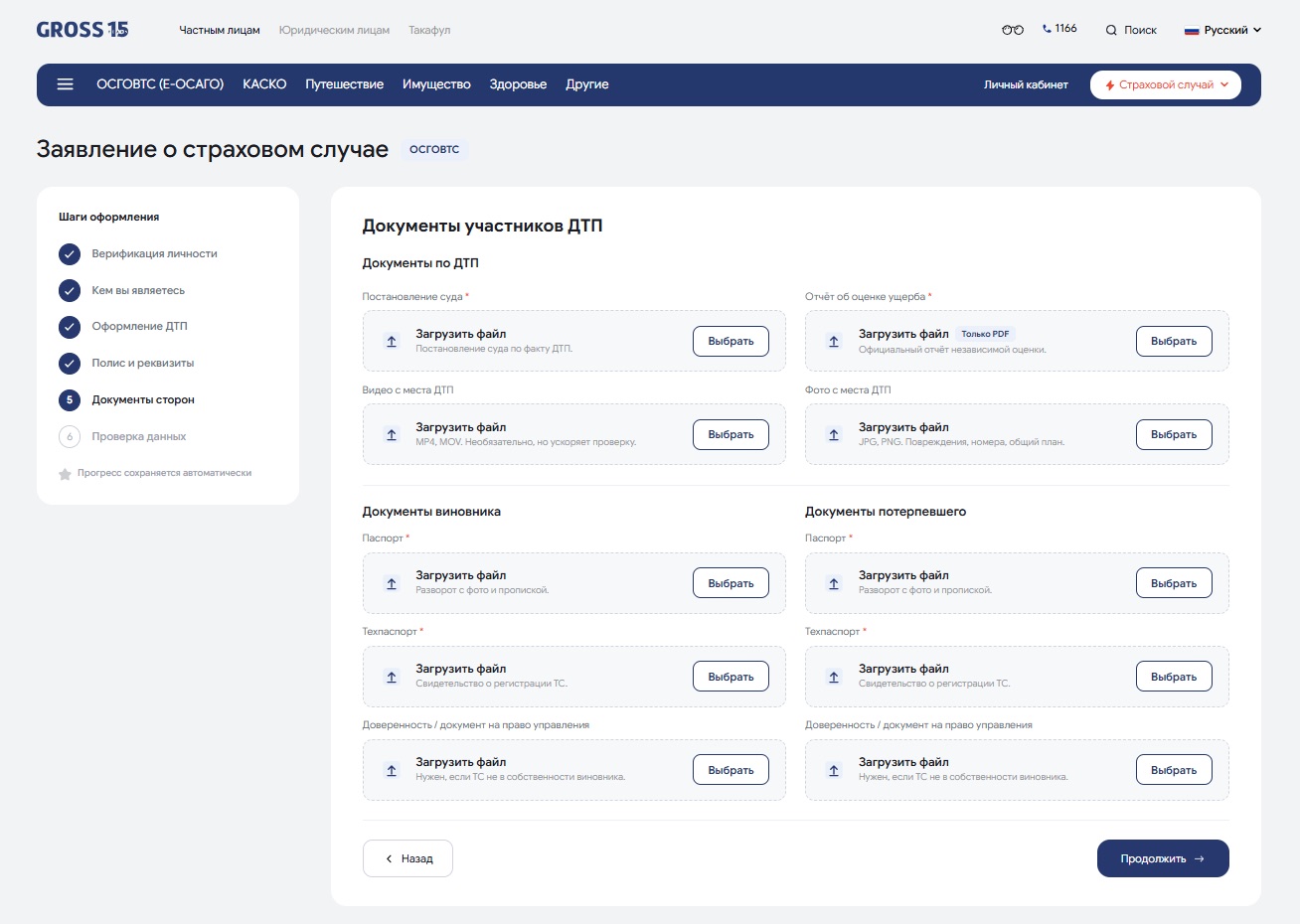
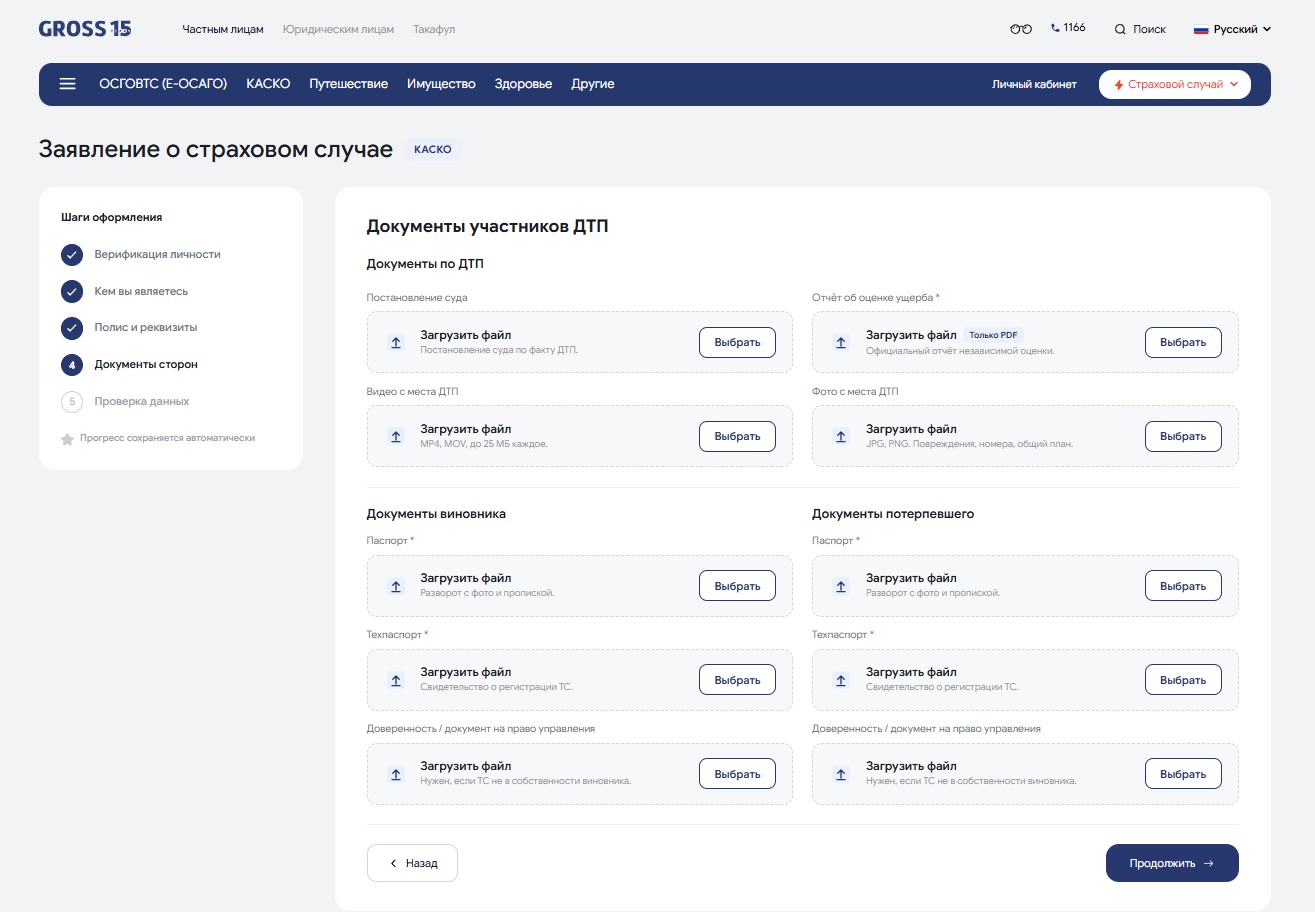
Step 5. Upload supporting documents
Upload documents supporting the circumstances of the incident and the resulting loss or harm. The form includes separate sections for documents relating to the parties involved and other claim evidence.
Click “Select” next to the relevant field to upload a document.
If available, you may also attach evidence from the accident scene:
• Video recordings in MP4 or MOV format, up to 25 MB per file;
• Photographs in JPG or PNG format.
Before proceeding, check that all required documents have been uploaded, each file opens correctly, and all copies are legible and match the original documents.
Step 6. Review and submit your claim
Check the details of the parties involved, the incident, the insurance policy, and the bank account provided.
Review the attachments and correct any errors or omissions before submitting.
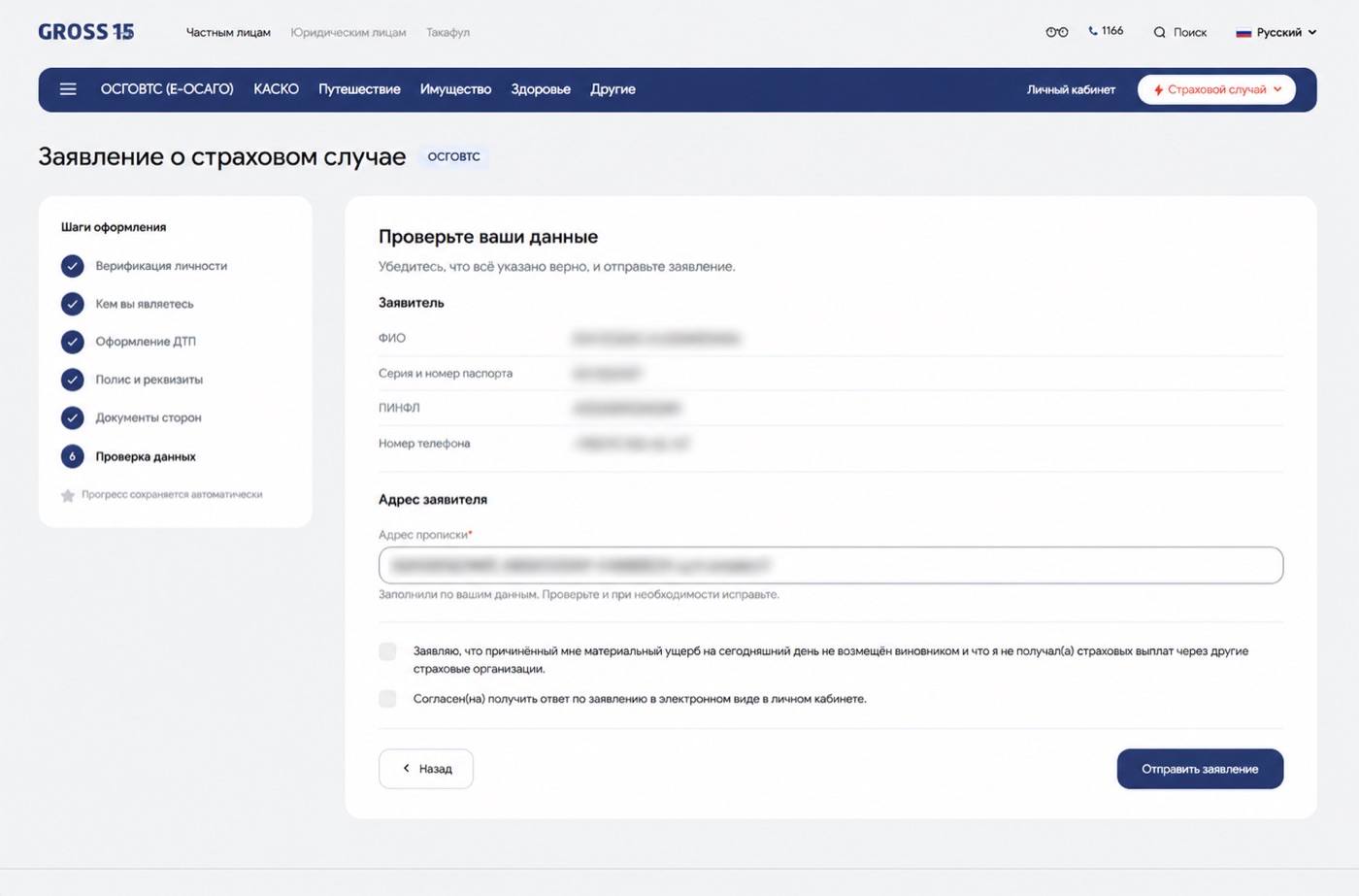
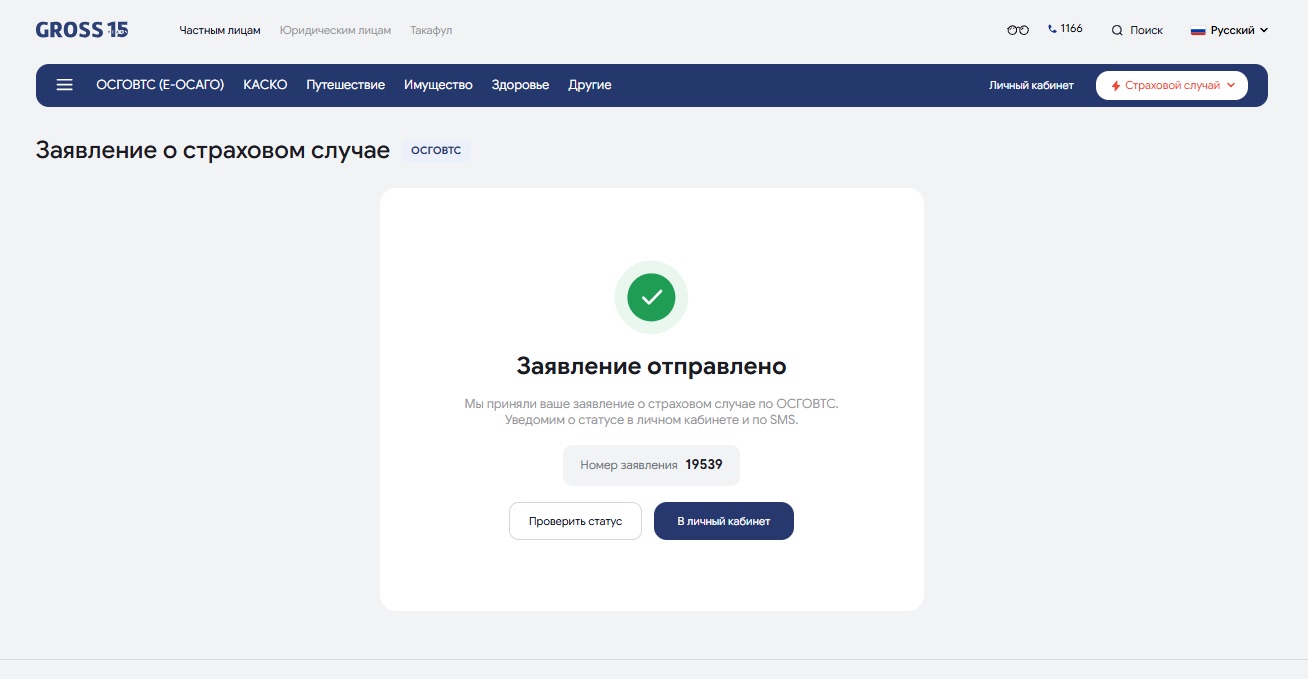
Submit the completed form for review. Once submission is successful, the system will confirm registration and display your claim reference number. Save this number so that you can track the claim’s progress.
For KASKO, upload the documents requested for your selected plan and incident type. The E-OSAGO checklist below does not automatically apply to KASKO claims.
Supporting documents for an E-OSAGO insurance claim
The documents requested depend on whether the claim concerns vehicle damage, bodily injury, or both. The checklist below relates to the E-OSAGO accident scenarios illustrated in this guide; follow the mandatory upload fields shown for your selected scenario.
Identify the relevant claim category and prepare the supporting documents before completing the form.
Vehicle damage only
If you are claiming for vehicle damage only, select “Vehicle damage only”.
For the illustrated claim scenario, prepare the following documents as requested by the form:
1. A court ruling concerning the road traffic accident;
2. A vehicle damage assessment report based on an inspection of the damaged vehicle, uploaded in PDF format;
3. Copies of the passports of the at-fault driver and the affected party, including the pages showing their photographs and registered addresses;
4. Vehicle registration certificates for the vehicles involved;
5. A power of attorney or another document confirming the driver’s authority to use the vehicle, where applicable.
You may also upload photographs showing the damage, the vehicle registration plate, and the accident scene, together with any available video footage. The assessment report supports the claim by documenting the extent of the vehicle damage and the assessed repair costs or value of the loss.
Bodily injury only
If the claim concerns injury or death resulting from the accident and does not include vehicle damage, select “Bodily injury only”.
Prepare the following documents as requested by the form:
1. A court ruling concerning the road traffic accident;
2. Medical records or other supporting documents confirming the injury or death resulting from the accident;
3. A copy of the at-fault driver’s passport;
4. A copy of the injured or deceased person’s passport;
5. The vehicle registration certificate for the at-fault driver’s vehicle;
6. A power of attorney or another document confirming the driver’s authority to use the vehicle, where applicable.
Upload the registration certificate for the affected party’s vehicle as well if it is relevant and requested by the form. For this category, medical records or other relevant evidence establish the nature of the injury or fatal outcome and its connection to the accident. A vehicle damage assessment report is not required where no vehicle damage is being claimed.
Both vehicle damage and bodily injury
If the claim concerns vehicle damage as well as injury or death, select “Both vehicle damage and bodily injury”.
Prepare documents supporting both elements of the claim:
1. A court ruling concerning the road traffic accident;
2. A vehicle damage assessment report in PDF format;
3. Medical records or other supporting documents confirming the injury or death resulting from the accident;
4. Copies of the passports of the at-fault driver and the affected party;
5. Vehicle registration certificates for the vehicles involved;
6. Powers of attorney or other documents confirming the drivers’ authority to use the vehicles, where applicable.
You may also attach photographs and video recordings from the accident scene. Upload each file to the corresponding section: medical records to the bodily injury section and the assessment report to the vehicle damage section.
The main document requirements for the illustrated E-OSAGO scenarios are compared below.
| Document | Vehicle damage only | Bodily injury only | Both vehicle damage and bodily injury |
|---|---|---|---|
| Court ruling concerning the accident | Required | Required | Required |
| Vehicle damage assessment report (PDF) | Required | Not required | Required |
| Medical records or other evidence of injury or death | Not required | Required | Required |
| Copies of the passports of the relevant parties | Required | Required | Required |
| Vehicle registration certificates | Required | At-fault vehicle required; affected party’s vehicle if relevant and requested | Required |
| Power of attorney or other evidence of the driver’s authority to use the vehicle | If applicable | If applicable | If applicable |
| Photographs and video recordings from the accident scene | Optional evidence | Optional evidence | Optional evidence |
The final upload requirements depend on the selected claim category and the fields shown in the online form. Mandatory upload fields are marked with an asterisk (*).
Review times and status tracking for E-OSAGO and KASKO claims
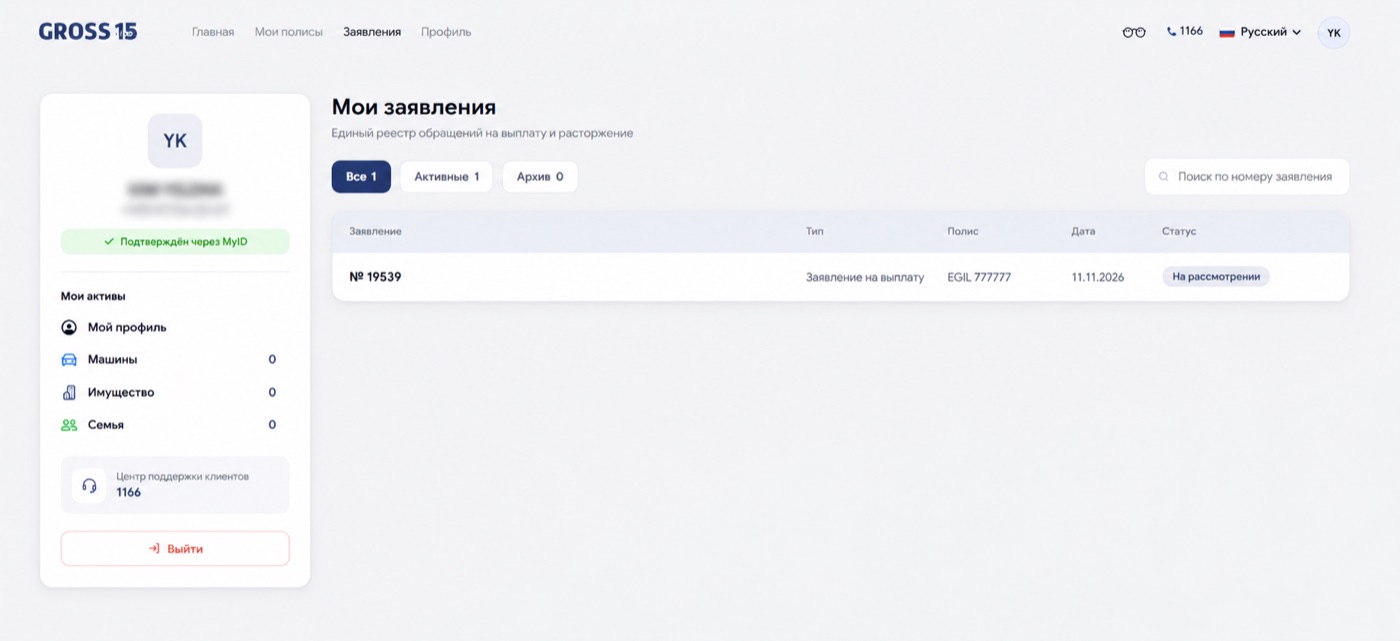
For E-OSAGO claims, the decision on payment or refusal must be made and communicated within 15 days of the written or electronic claim for payment. This is a decision deadline, rather than a guarantee that payment will arrive within 15 days. KASKO review and settlement times depend on the selected plan and policy terms. Once your online submission is registered, the GROSS claims team reviews the incident details and supporting documents.
Track your claim through the “My Applications” section of your GROSS personal account. It displays submitted claims and their current status, together with responses from the claims team. Any documents uploaded by GROSS are available to view and download. Claims submitted in person at a GROSS office are also recorded, so you can track them regardless of how they were submitted.
If your claim is approved, payment is made using the bank details provided or another settlement method agreed under the policy. For E-OSAGO, the statutory payment deadline is five working days after the insurer’s decision to pay. If your documentation is complete and no in-person visit is required, the process can be completed remotely.
Additional features in your GROSS personal account
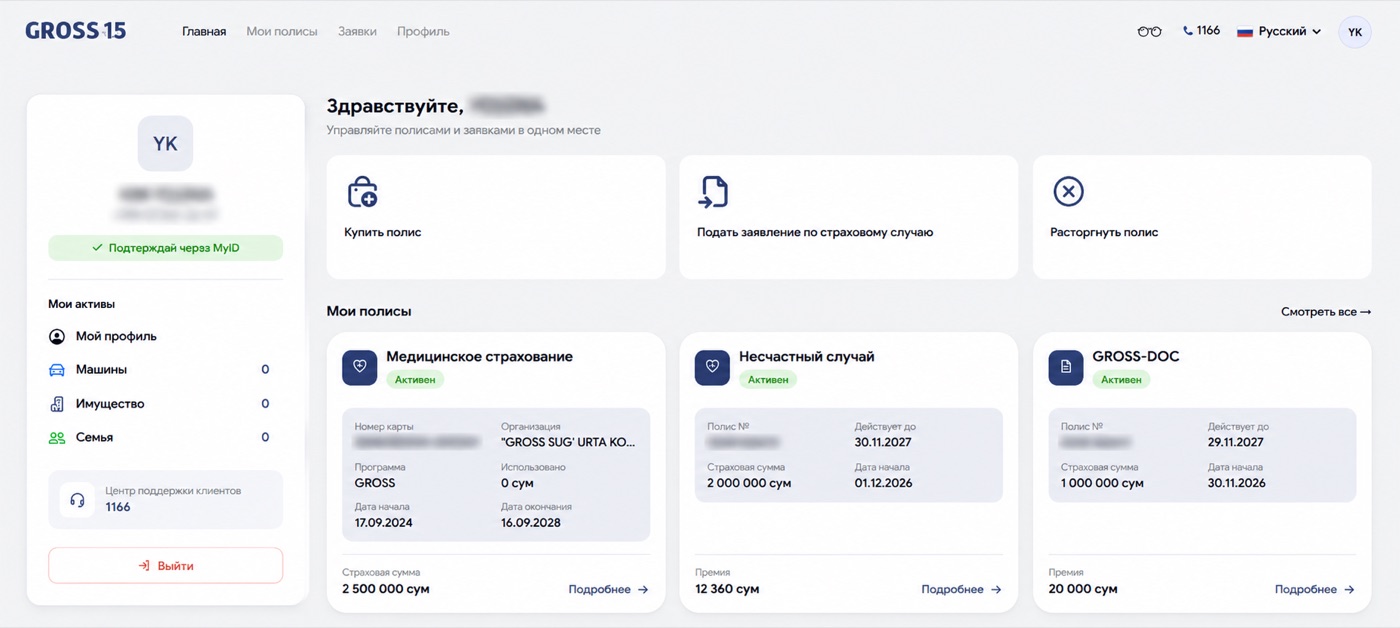
The updated GROSS personal account brings claim submission, policy management, and communication with GROSS together on one online platform.
Requesting policy cancellation online
You can submit a policy cancellation request through your personal account.
To do so:
1. Log in and verify your identity through MyID.
2. Select the policy you wish to cancel.
3. Choose a reason from the available options or enter your own.
4. Provide the required bank details.
5. Submit the cancellation request using the online form.
This allows you to initiate cancellation without visiting an office to submit a request. Eligibility for cancellation and any premium refund depends on the insurance product, policy terms and conditions, and applicable regulations.
Managing your insurance policies
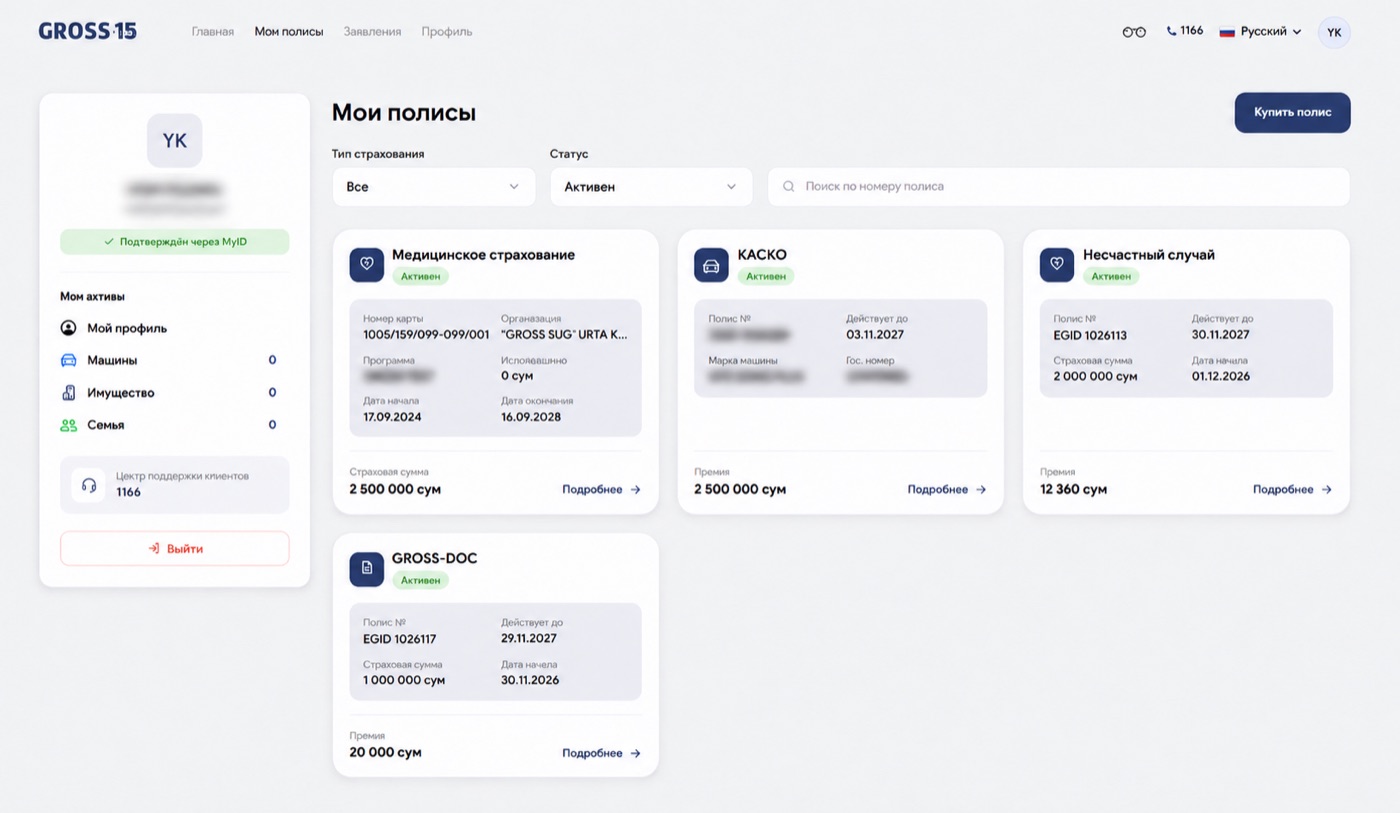
The “My Policies” section allows you to view your active policies and access their details.
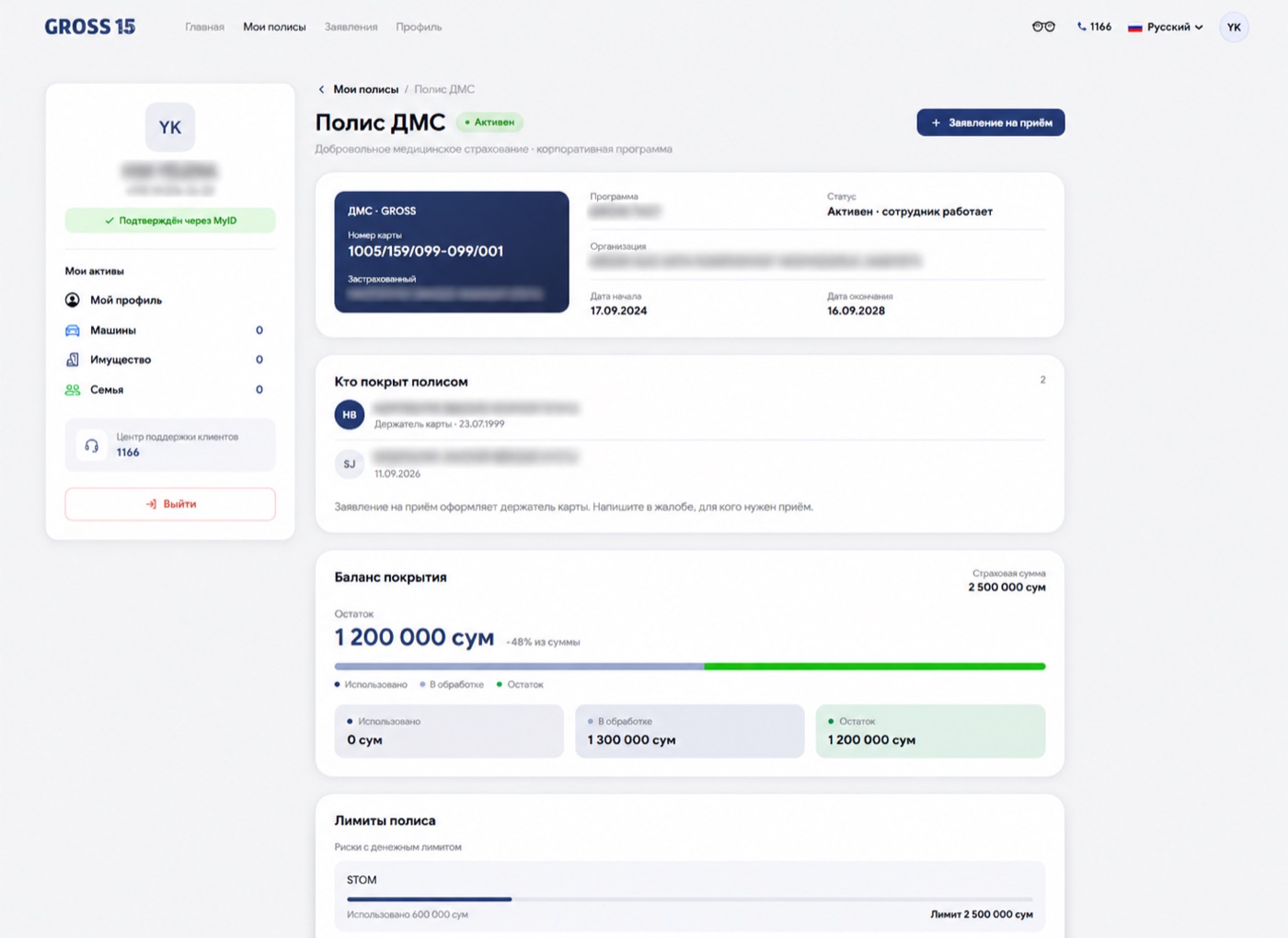
For voluntary health insurance (VHI) policies, the policy record also displays:
• The policy number and period of cover;
• Details of the policyholder organisation, where the policy is held by a legal entity;
• Details of insured family members under family cover;
• Sums insured and applicable coverage limits;
• Benefits used and the remaining available limits;
• Claims history, including claim amounts and statuses.
You can also purchase insurance policies and access issued policy documents online.
Tracking claims and other requests
The “My Applications” section shows your submission history, status updates, and responses from GROSS. It includes claims submitted online and at a GROSS office, giving you access to your claim information in one place.
Requesting a doctor’s appointment online
Customers with eligible VHI plans can request a doctor’s appointment through their personal account. The online form allows you to request medical services covered by your policy.
Submitting a claim through your GROSS personal account
To submit an E-OSAGO or KASKO claim, log in to your personal account on the official GROSS website, verify your identity through MyID, complete the relevant fields, and upload the supporting documents. Save the claim reference number provided after submission. You can then follow the claim’s progress, read responses from the claims team, and view related documents through your personal account.

Schengen visa insurance: what insurance do you need for a visa?
What medical insurance is required for a Schengen visa? Learn about travel insurance requirements, minimum coverage, policy validity periods, and key insurance considerations for traveling to Europe
How to report an insurance claim online for E-OSAGO and KASKO
A step-by-step guide to submitting an insurance claim for E-OSAGO and KASKO through your GROSS account. Learn how to report a road accident online, what documents to prepare and how to submit your claim

How to apply for CCLIOMV online in Uzbekistan: a step-by-step guide
How to apply for CCLIOMV online in Tashkent and Uzbekistan? Step-by-step instructions for registering compulsory liability insurance for vehicle owners via the internet

Insurance for buying a new car in Uzbekistan: what coverage do you need?
Buying a new car in Uzbekistan? Learn which insurance policies you need, the differences between MTPL and CASCO and how Gross Insurance can help protect your vehicle from day one

What to Do After a Road Accident in Uzbekistan – Step-by-Step Guide
Learn what to do after a road accident in Uzbekistan. Follow a step-by-step guide on reporting the accident, contacting the relevant authorities, notifying your insurance company, and filing a successful insurance claim with advice from Gross Insurance

Guide to choosing an insurance company in Uzbekistan: a checklist for confidence
Learn how to choose a reliable insurance company in Uzbekistan. Use this practical checklist to evaluate licensing, reputation, policy terms, claim payments, and customer service